For the complete documentation index, see llms.txt. Markdown versions of all docs pages are available by appending .md to any docs URL.
Gateways
Verified : Code examples on this page have been automatically tested and verified.Define named gateways that set up the ports and listeners where LLM, MCP, UI, and routing traffic enters agentgateway.
Gateways are the entry point to agentgateway. Each gateway is a named port that agentgateway listens on, and the endpoints that serve traffic attach to it: HTTP and TCP routes, LLM models, MCP targets, and the agentgateway UI.
Every gateway has one or more listeners. A gateway that serves a single hostname needs only the implicit listener that it comes with, and a gateway that serves several hostnames on one port defines a named listener for each one.
Because everything attaches to a gateway by name, you can serve several endpoints on one port, or expose the same routes on more than one port.
Note
Gateways replace the binds field. The binds field still works, but it is deprecated. For help converting an existing configuration, see Migrate from binds.
How gateways, listeners, and routes fit together
Agentgateway configuration has three layers.
- Gateways define where traffic enters. A gateway sets a port, and optionally a protocol and TLS settings. Gateways are configured as a map, so each one has a name that other sections reference.
- Listeners optionally subdivide a gateway. Use listeners when one port must serve multiple hostnames with different TLS certificates. A gateway without listeners has a single implicit listener.
- Routes define how traffic that reaches a gateway is matched and forwarded. Routes are configured at the top level and attach to gateways by name, which is what lets one route serve several gateways.
The llm, mcp, and ui sections attach to gateways the same way that routes do.
The following diagram shows traffic flowing left to right through the three layers, for two gateways.
- The
defaultgateway on port 3000 sets nolisteners, so it gets one implicit listener that serves all hostnames. You do not configure that listener; the dotted box marks it as implied. - The
webgateway on port 8443 splits its port into two named listeners that serve different hostnames. - Routes, LLM, MCP, and the UI attach by name in the last column. A route that names
webis served by every listener under that gateway, so bothdiscreteandwildcardforward to it. A route that namesweb/discreteis served by that one listener only.
    flowchart LR
    C(["Client<br/>traffic"]):::client

    subgraph gw["gateways: where traffic enters"]
        GD["default<br/>port 3000"]:::gateway
        GW["web<br/>port 8443"]:::gateway
    end

    subgraph ls["listeners: split one port by hostname"]
        LI["implicit listener<br/>all hostnames"]:::implicit
        LD["discrete<br/>a.example.com"]:::listener
        LW["wildcard<br/>*.example.com"]:::listener
    end

    subgraph at["routes and endpoints: attach by name"]
        RD["route<br/>gateways: [default]"]:::route
        FE["llm / mcp / ui<br/>gateways: [default]"]:::endpoint
        RA["route<br/>gateways: [web/discrete]"]:::route
        RW["route<br/>gateways: [web]"]:::route
    end

    C --> GD
    C --> GW
    GD --> LI
    GW --> LD
    GW --> LW
    LI --> RD
    LI --> FE
    LD --> RA
    LD --> RW
    LW --> RW

    %% Stroke-only styling, so node text follows the light or dark page theme.
    %% Border weight and dashes carry the meaning, not color alone.
    classDef client stroke:#7734be,stroke-width:1px,stroke-dasharray:4 3;
    classDef gateway stroke:#7734be,stroke-width:3px;
    classDef listener stroke:#7734be,stroke-width:2px,stroke-dasharray:6 3;
    classDef implicit stroke:#7734be,stroke-width:1px,stroke-dasharray:2 3;
    classDef route stroke:#7734be,stroke-width:1px;
    classDef endpoint stroke:#7734be,stroke-width:1px,stroke-dasharray:2 2;
Define a gateway
You can define a gateway in the UI or in the configuration file.
The following steps use the UI to create the same default gateway and route as the Config file tab.
Open Traffic > Gateways, and click Add gateway.
Select Default gateway. The UI sets the Name to
default. The UI accepts the namedefaultonly when you select this option. The option is unavailable when another gateway is already the default gateway.Enter
3000for the Port.Select HTTP as the Protocol. To preview the change to your configuration file, click View diff.
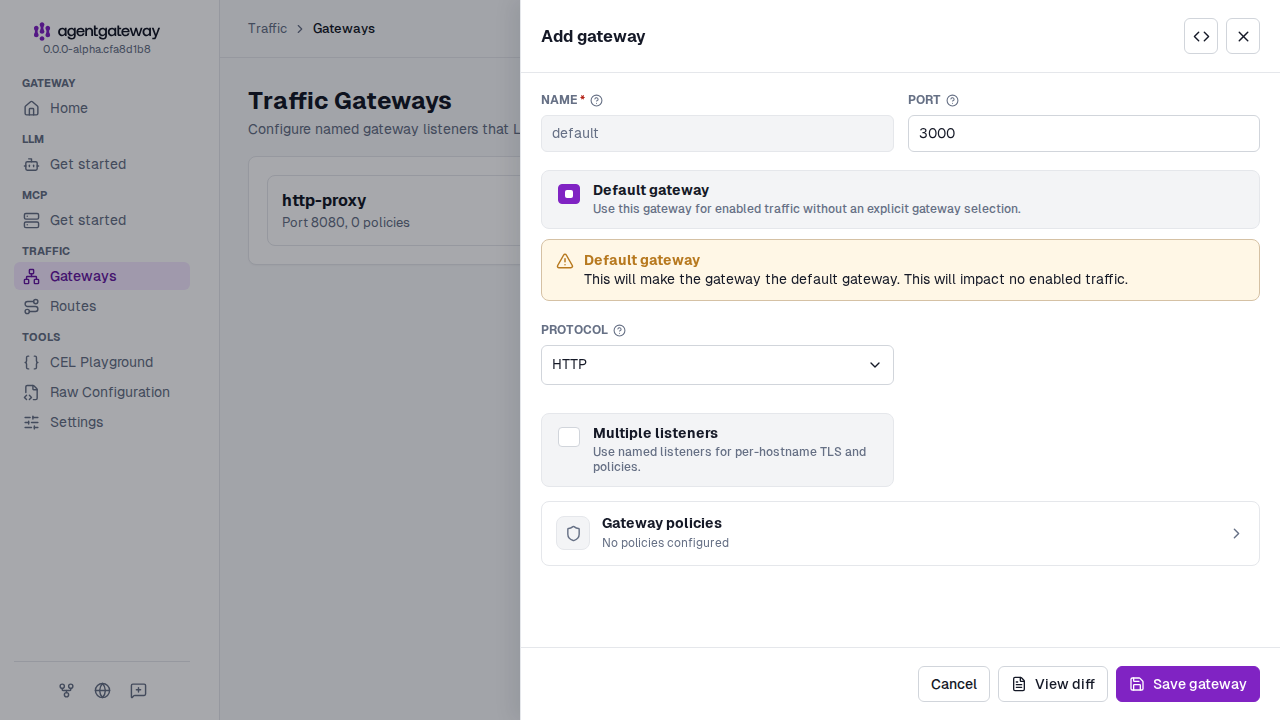
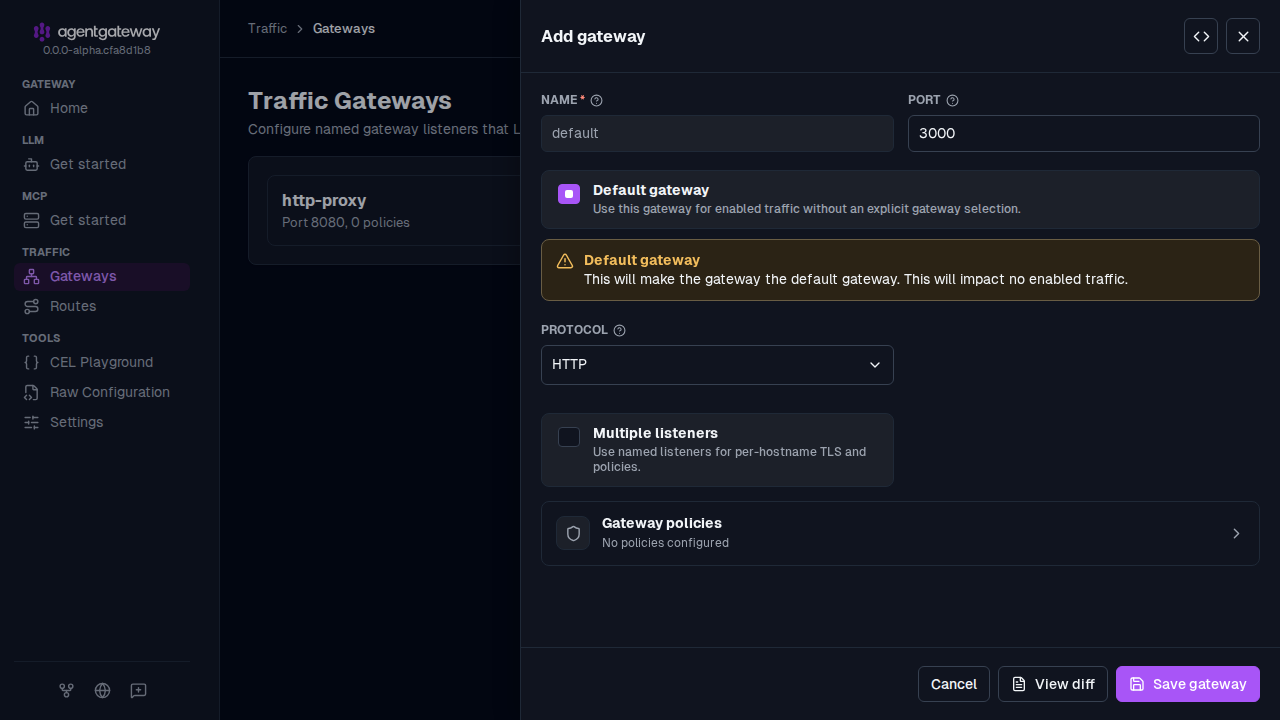
Click Save gateway.
Open Traffic > Routes, and click Add route.
Select the
defaultGateway, and enterlocal-backendfor the Name. The UI requires a route name.In the Backends section, click Add backend, and enter
localhost:8000for the Host.Click Save route.
The UI writes gateways: default and a / path prefix match on the route. Both values are the defaults, so the route behaves the same as the route in the Config file tab.
Whether the UI can save depends on your storage mode. For more information, see Save changes from the UI.
Choose a listen address
Set bindAddress to an IPv4 or IPv6 address to restrict the network interface that a gateway listens on. When omitted, the gateway listens on all interfaces. For example, bind to loopback when a sidecar should accept traffic only from processes in the same pod or host network namespace.
# yaml-language-server: $schema=https://agentgateway.dev/schema/config
gateways:
  default:
    bindAddress: 127.0.0.1
    port: 3000
routes:
- backends:
- host: localhost:8000| Field | Description |
|---|---|
gateways.default.bindAddress | Local IP address to listen on. Use 127.0.0.1 for IPv4 loopback or "::1" for IPv6 loopback. Hostnames are not accepted. A loopback listener cannot accept connections sent to the pod IP or a Kubernetes Service. Use an address reachable by those clients when you expose a gateway through a Service. |
gateways.default.port | Listening port, shared by all listeners on this gateway. |
To list, create, update, or delete gateways on a running instance from the command line, see Manage config resources with agctl.
Attach routes to a gateway
To attach a route to a specific gateway, list the gateway name in the route’s gateways field. The following configuration serves two different sets of routes on two ports.
# yaml-language-server: $schema=https://agentgateway.dev/schema/config
gateways:
  public:
    port: 8080
  internal:
    port: 8081
routes:
- name: public-api
  gateways: [public]
  matches:
  - path:
      pathPrefix: /api
  backends:
  - host: api.example.com:443
- name: internal-admin
  gateways: [internal]
  matches:
  - path:
      pathPrefix: /admin
  backends:
  - host: admin.internal:8000
Serve the same routes on multiple gateways
Because routes attach by name, one route can serve several gateways. A common case is serving the same API on both plaintext HTTP and HTTPS.
# yaml-language-server: $schema=https://agentgateway.dev/schema/config
gateways:
  http:
    port: 8080
  https:
    port: 8443
    tls:
      cert: ./certs/cert.pem
      key: ./certs/key.pem
routes:
- name: api
  gateways: [http, https]  # One route definition serves both ports
  backends:
  - host: api.example.com:443
Add listeners to a gateway
Use the listeners field when one port must serve multiple hostnames with different TLS certificates. Each listener takes a name, and routes reference it in the form <gateway-name>/<listener-name>.
When you set listeners, you can also set port and bindAddress on the gateway itself. Move the protocol, hostname, and TLS settings into each listener.
The following steps create the same gateway and routes as the Config file tab.
Open Traffic > Gateways, and click Add gateway.
Enter a Name and a Port, such as
weband8443.Select Multiple listeners, and click Save gateway. The gateway gets one listener named
listener1.Note
Select Multiple listeners before you change other fields. The option is unavailable after you select HTTPS or TLS, or add a policy to the gateway.
In the listener table of the
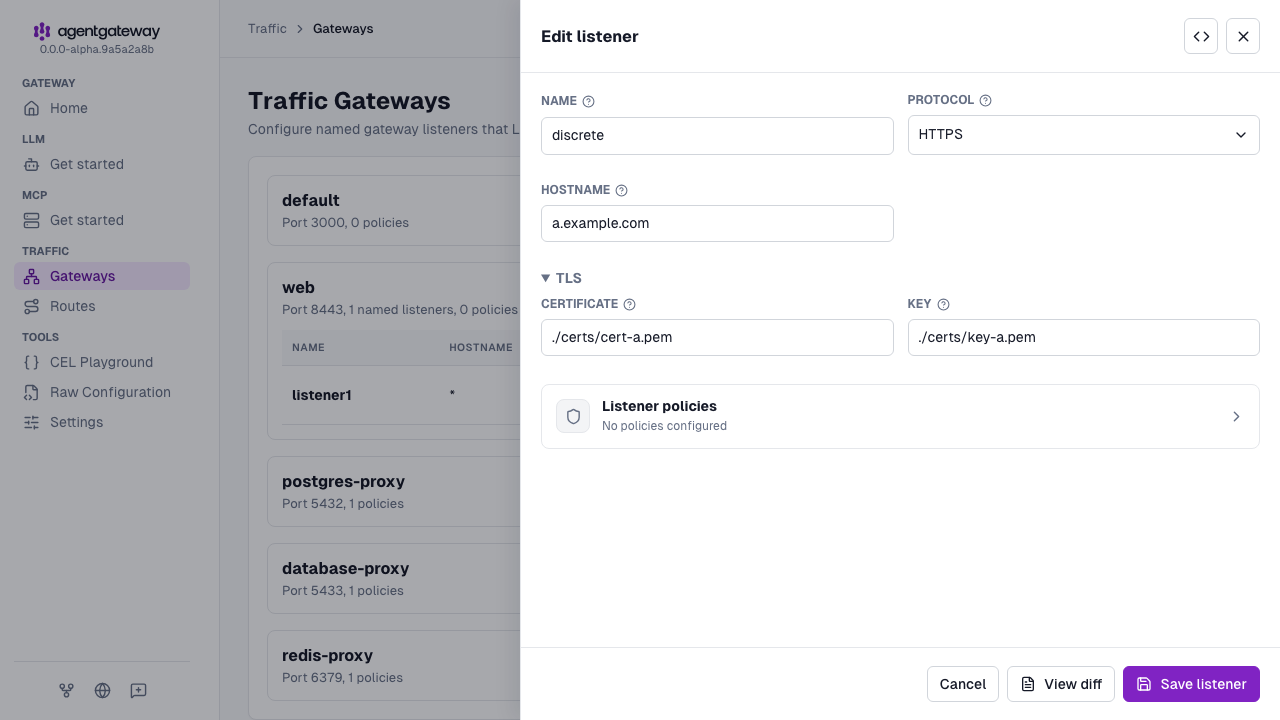
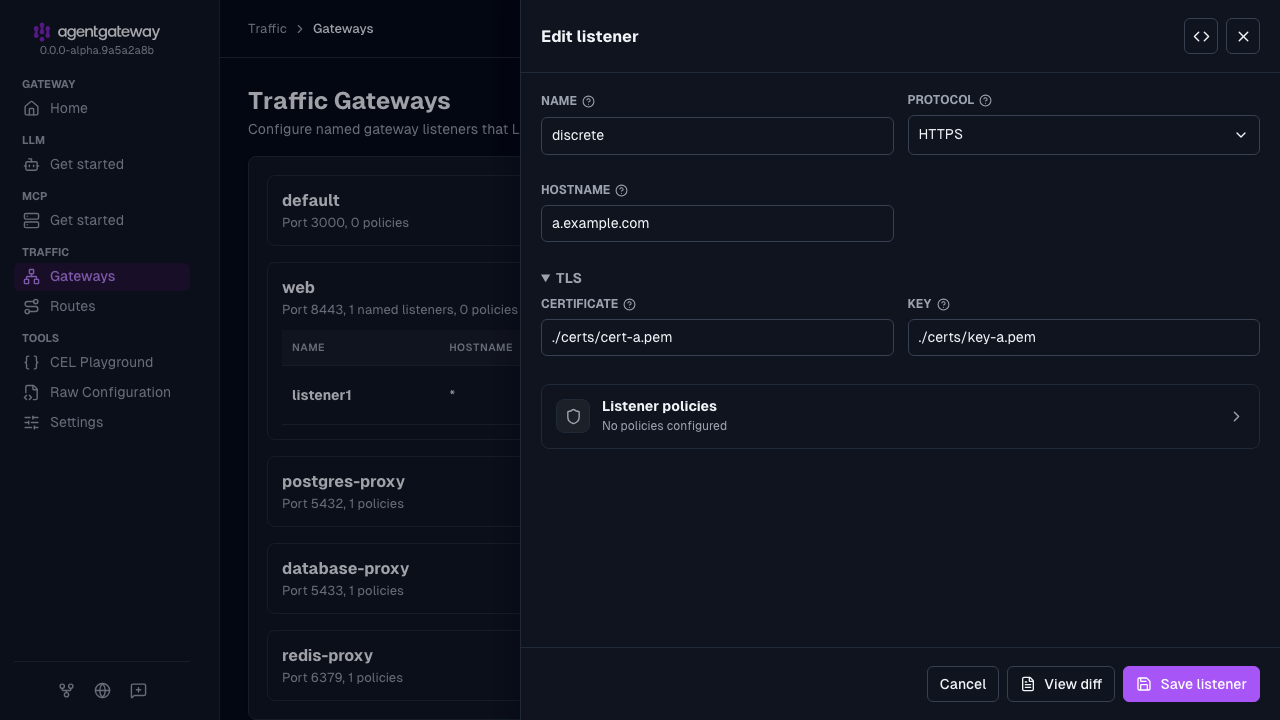
webgateway, click the Edit listener icon forlistener1, and fill out the Edit listener drawer.- Enter
discretefor the Name. - Select HTTPS as the Protocol. The TLS section appears.
- Enter
a.example.comfor the Hostname. - Expand the TLS section. Enter
./certs/cert-a.pemfor the Certificate and./certs/key-a.pemfor the Key.
- Enter
Click Save listener.
In the header of the
webgateway, click the Add listener icon. In the Add listener drawer, create thewildcardlistener in the same way as thediscretelistener.- Enter
wildcardfor the Name. - Select HTTPS as the Protocol.
- Enter
*.example.comfor the Hostname. - Expand the TLS section. Enter
./certs/cert-wildcard.pemfor the Certificate and./certs/key-wildcard.pemfor the Key. - Click Save listener.
- Enter
Open Traffic > Routes, and add the two routes. For each route, click Add route, enter the Name, select the Gateway, add a backend Host, and click Save route.
a-only: Select theweb/discretegateway, and entera-backend.example.com:443.everything-else: Select web (all HTTP listeners), and entershared-backend.example.com:443.
The certificate and key files must exist when you save the listener. The UI leaves out protocol: HTTPS on each listener, because setting tls implies it.
All listeners under a gateway share the gateway’s bind address and port, so they cannot mix encrypted and plaintext traffic. If you need both HTTP and HTTPS, define two gateways as shown in Serve the same routes on multiple gateways.
Set the gateway protocol
The protocol field controls whether a gateway accepts HTTP routes or TCP routes. Valid values are HTTP, HTTPS, TCP, and TLS. When you omit the field, a gateway defaults to HTTP, or to HTTPS when you set tls.
TCP and TLS gateways serve tcpRoutes instead of routes.
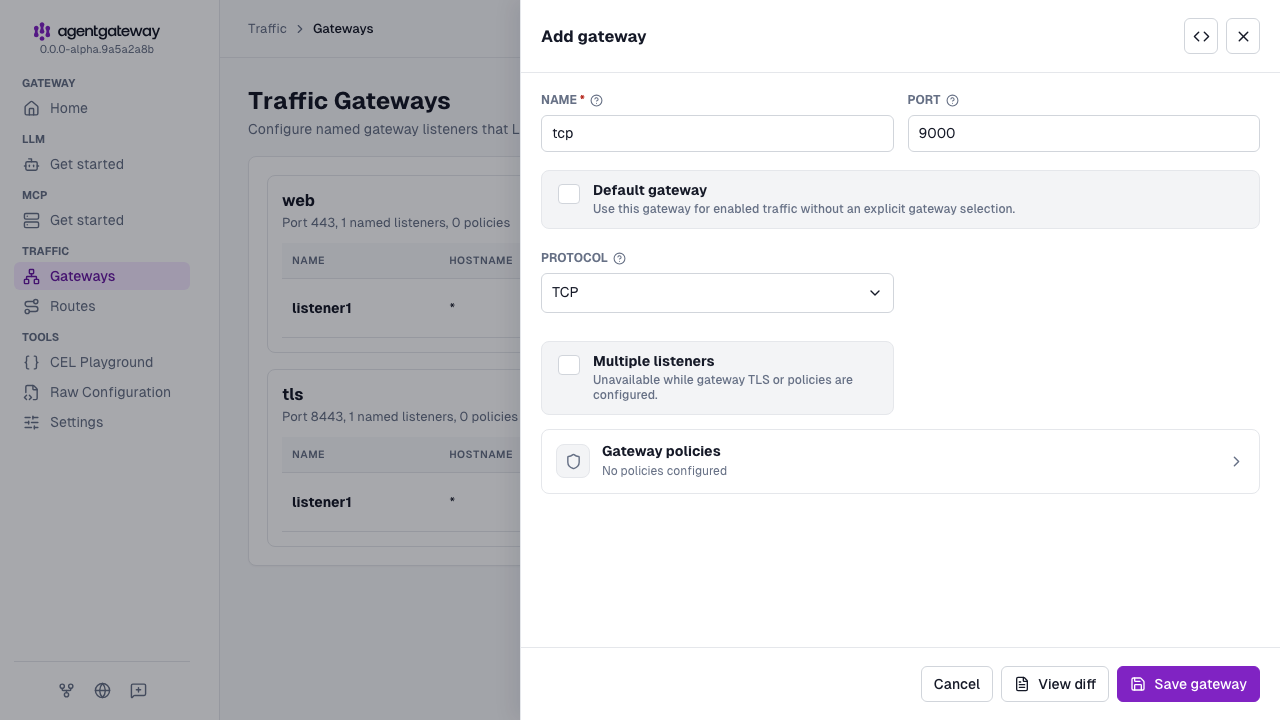
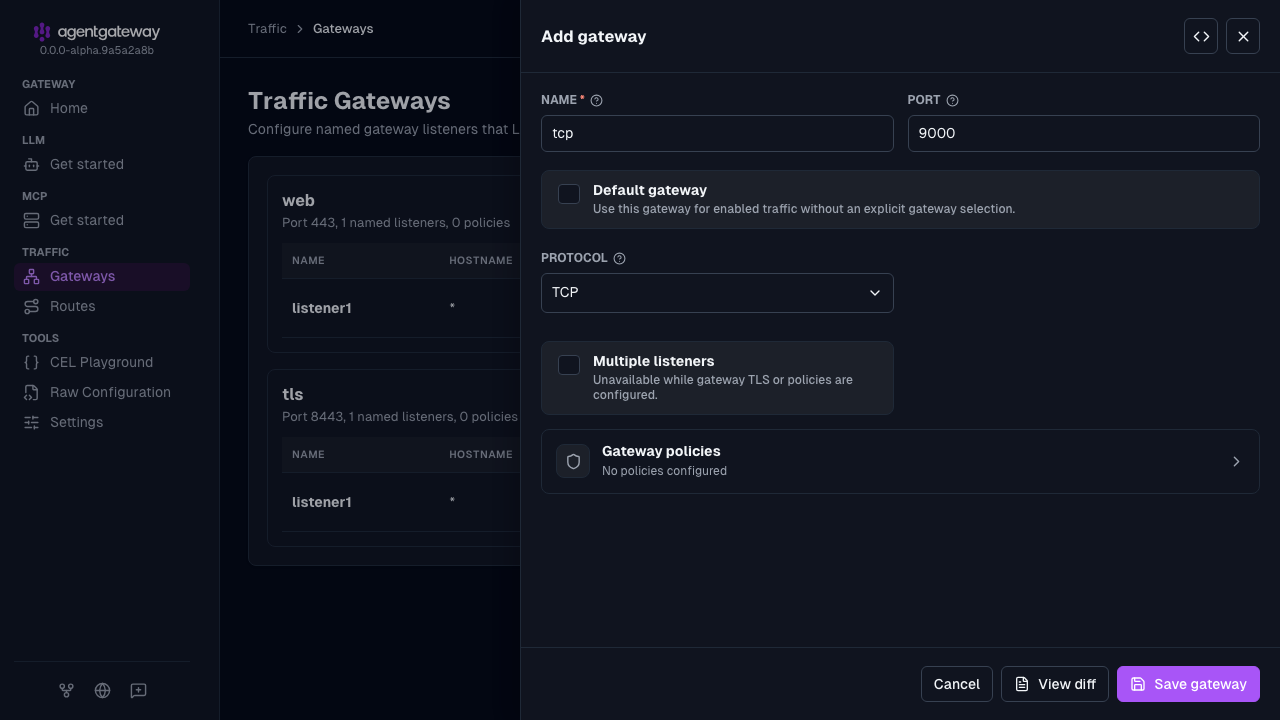
Open Traffic > Gateways, and click Add gateway.
Enter a Name and a Port, such as
tcpand9000.Select TCP as the Protocol, and click Save gateway.
Open Traffic > Routes, and click Add route.
Select TCP as the Kind, and select the
tcpGateway.Enter
tcp-backendfor the Name. The UI requires a route name.Click Add backend, and enter
localhost:8000for the Host.Click Save route.
The UI writes gateways as a single value, gateways: tcp, instead of a list. Both forms attach the route to the tcp gateway.
For more information about each protocol, including TLS termination and passthrough, see Listeners.
Attach LLM, MCP, and the UI to a gateway
The llm, mcp, and ui sections each take a gateways field, so you can serve them all from one port. Each section serves its own paths: LLM uses the standard serving paths such as /v1/chat/completions, MCP uses /mcp, and the UI serves the remaining paths.
The following configuration exposes an LLM model, an MCP target, and the UI on port 3000. None of the three sections sets gateways, so all of them attach to the gateway named default.
# yaml-language-server: $schema=https://agentgateway.dev/schema/config
gateways:
  default:
    port: 3000
llm:
  models:
  - name: "*"
    provider: openAI
    params:
      apiKey: "$OPENAI_API_KEY"
mcp:
  targets:
  - name: everything
    stdio:
      cmd: npx
      args:
      - '@modelcontextprotocol/server-everything'
ui: {}
With no ui section, the UI is served only on the admin interface on localhost:15000, which is loopback-only. Setting the ui section serves it on a gateway, which is how you reach it from anywhere else. For more information, see The UI and the admin interface are not the same thing.
Warning
Serving the UI on a gateway exposes it to anyone who can reach that port. Protect it with authentication, typically OIDC, before you expose it outside of localhost. The gateway serves the UI and its API only. The admin interface’s debugging endpoints, such as /config_dump, are not served on it.
Because each section attaches separately, you can also split them across ports. The following configuration serves the UI on its own port while LLM traffic stays on the shared gateway.
# yaml-language-server: $schema=https://agentgateway.dev/schema/config
gateways:
  default:
    port: 3000
  ui-gateway:
    port: 9000
llm:
  models:
  - name: "*"
    provider: openAI
    params:
      apiKey: "$OPENAI_API_KEY"
ui:
  gateways: [ui-gateway]
Attach policies to a gateway
Gateways and listeners accept the same policies that listeners accepted under binds, such as jwtAuth, authorization, cors, basicAuth, apiKey, oidc, extAuthz, extProc, and transformations. A policy on a gateway applies to all traffic that enters that gateway, including LLM, MCP, and UI traffic.
The following steps add the CORS policy from the Config file tab to an existing default gateway.
Open Traffic > Gateways, and click the Edit gateway icon for the
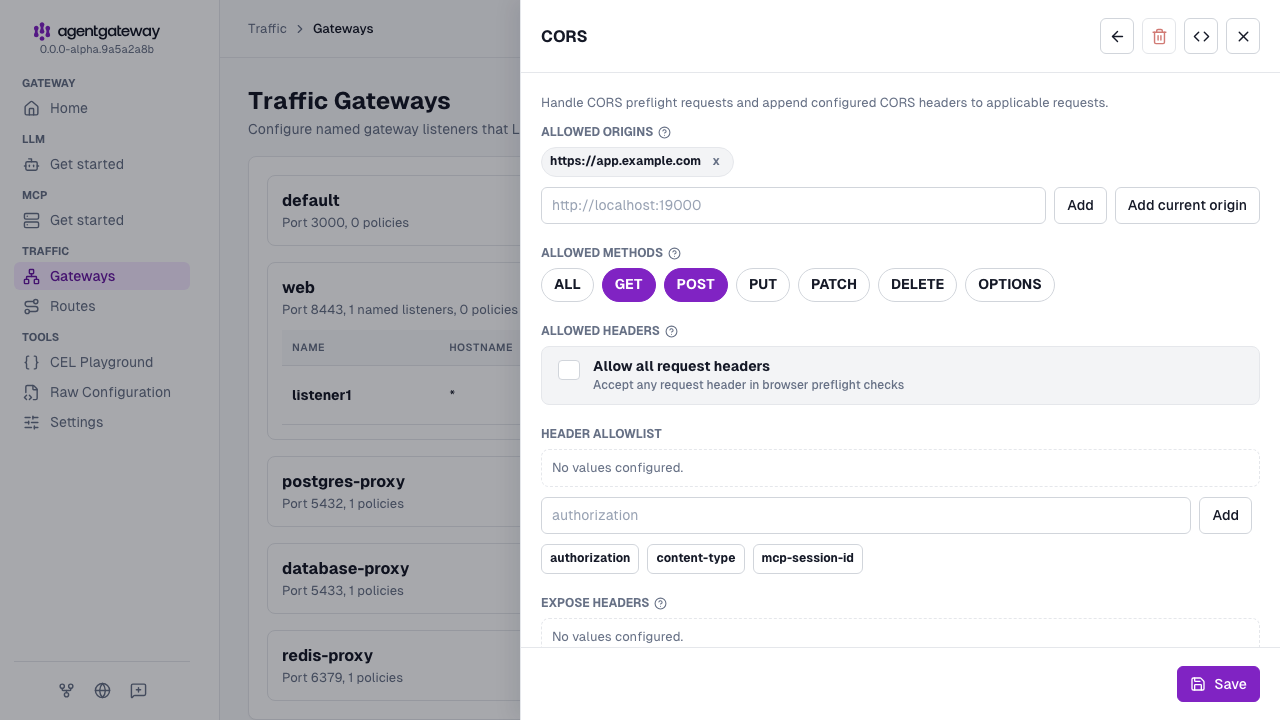
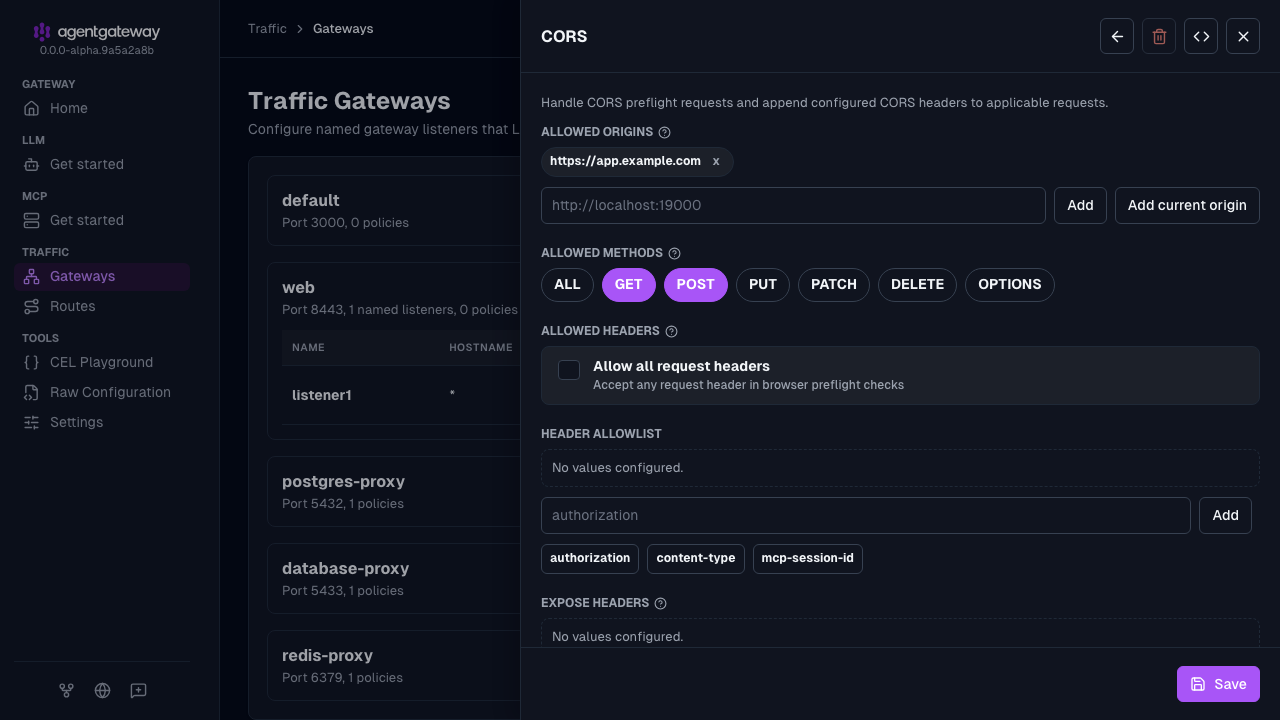
defaultgateway.Click Gateway policies, and then click the CORS tile.
Fill out the CORS form.
- In Allowed origins, enter
https://app.example.com, and click Add. - In Allowed methods, keep GET and POST selected.
- In Allowed headers, clear Allow all request headers.
- In Allowed origins, enter
Click Save, and close the Gateway policies drawer.
Click Save gateway.
To attach a policy to one listener instead, click the Edit listener icon for the listener, and use its Listener policies section.
To scope a policy more narrowly, attach it to a listener or to a route instead. For more information, see Attachment points.
Migrate from binds
The binds field nests listeners and routes inside each port, which means a route belongs to exactly one listener. Gateways invert that relationship: routes are top level and reference gateways by name.
| Concept | binds | gateways |
|---|---|---|
| Port | An entry in the binds list | A named entry in the gateways map |
| Listener | binds[].listeners[] | gateways.<name>.listeners[], or the gateway itself |
| HTTP routes | Nested under binds[].listeners[].routes | Top-level routes, attached with gateways |
| TCP routes | Nested under binds[].listeners[].tcpRoutes | Top-level tcpRoutes, attached with gateways |
| Reuse across ports | Duplicate the route under each listener | List several gateways in one route |
| LLM, MCP, and UI on the same port as routes | Not supported | Attach each section to the same gateway |
The following configuration uses binds.
# yaml-language-server: $schema=https://agentgateway.dev/schema/config
binds:
- port: 3000
  listeners:
  - protocol: HTTP
    routes:
    - name: api
      matches:
      - path:
          pathPrefix: /api
      backends:
      - host: localhost:8000
The following configuration is the equivalent with gateways.
# yaml-language-server: $schema=https://agentgateway.dev/schema/config
gateways:
  default:
    port: 3000
    protocol: HTTP
routes:
- name: api
  matches:
  - path:
      pathPrefix: /api
  backends:
  - host: localhost:8000
You can convert a configuration in the UI or by editing your configuration file.
Start agentgateway with your
bindsconfiguration, and open Traffic > Gateways. A Detected legacy binds config banner appears when the configuration hasbindsbut nogateways.Click Review migration. The Migrate binds to gateways drawer shows your current configuration next to the converted one.
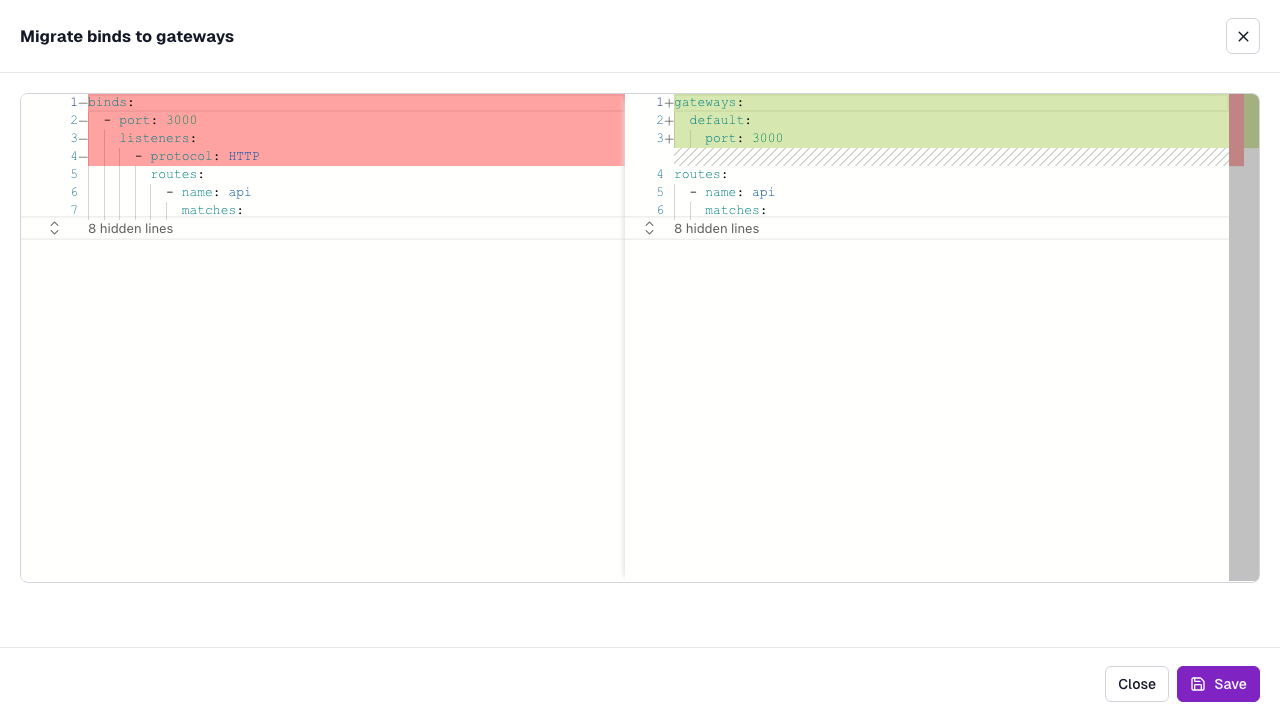
Review the diff, and click Save.
For the example binds configuration in this section, the UI writes the same gateways configuration, without the default protocol: HTTP field.
The UI leaves the following binds in binds. Convert them by editing the configuration file.
- Binds with a non-default
modeortunnelProtocol. - Binds whose listeners mix HTTP and TCP routes.
- Binds whose listeners mix TLS and plaintext traffic.
Note
You can keep binds and gateways in the same file while you migrate, as long as they do not claim the same port.